
Set Up The OAuth
Set Up the OAuth
To set up OAuth for your Google Cloud project, follow these detailed steps:
-
Log into Google Cloud Platform
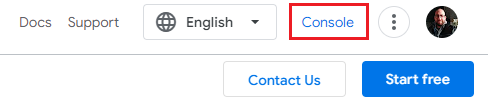
- Access the Console:
- Go to the Google Cloud Console.
- Click on the Console tab at the top right side of the page.
-
Create a New Project
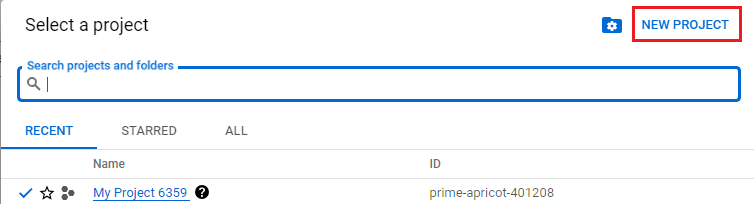
- Open the Project Selector:
- Click on the arrow icon in the project selection section located at the top of the page.
- Start Creating a New Project: In the dropdown menu, click on New Project.

-
Configure Your Project
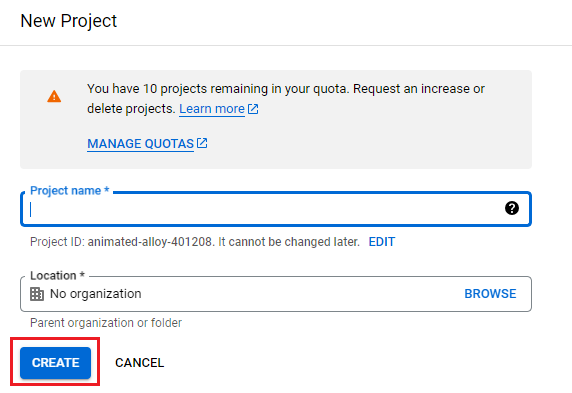
- Enter Project Details:
- Project Name: Type in a name for your project (e.g., "My Project").
- Location: This is optional. You can choose a location if required.
- Create the Project: Click on Create to finalize the setup.
-
Confirm Project Creation
- Project Notification:
- After creating the project, you will be redirected to the Google Cloud Console homepage.
- A notification will appear at the top right corner of the screen confirming that your project has been created.
Select Your Project: - Once the project is created, click on Select Project to begin working on it.
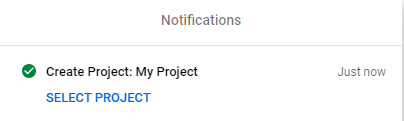
Note: You can also select the project from the project dropdown in step 2 if needed.Next Steps : With your project created, you can now proceed to set up the OAuth consent screen, configure API access, and create the necessary credentials to integrate with the Ziwo platform.
Updated over 1 year ago
Did this page help you?